How to Number Every Tenth Line in a PDF Without Retyping
By Admin Cook · August 27, 2026 · 4 min read
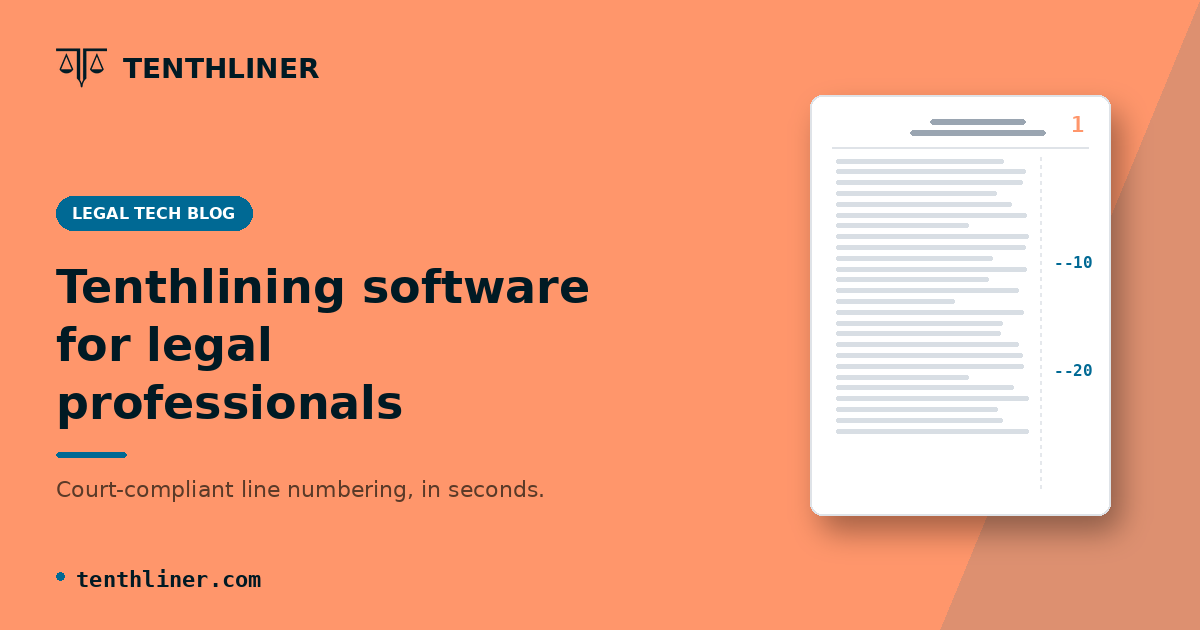
If you've ever counted down a page, marked line 10, counted another ten lines, marked line 20, and repeated that for a 40-page affidavit, you already know why this shouldn't be a manual task. It's slow, it's easy to miscount on a page with an odd paragraph break, and a single missed line throws off every number after it. This guide covers the fastest way to add court-compliant, every-tenth-line margin numbering to an existing PDF without retyping or reformatting the document itself.
Step 1: Have your document ready as a finished PDF
Tenthliner works on a PDF you've already drafted and exported, whether that's from Word, Google Docs, or a scanned document converted to PDF. It doesn't edit your typed content or reflow your paragraphs. It adds line numbers to the existing page layout, so make sure the document is in its final drafted form (correct margins, correct font, correct spacing per the practice direction you're filing under) before you number it. Numbering isn't a substitute for getting the underlying typing format right first.
Step 2: Upload the PDF
On the upload page, select or drag in your file. You can process a single document, or up to 10 PDFs at once in a batch if you're preparing several documents for the same filing. Files up to 50MB are supported. The system checks the file before processing (including a security scan), and credits are deducted based on page count, at one credit per page.
Step 3: Choose a court preset, or customize the settings yourself
This is the step that actually determines how the numbering looks. Three quick presets are available, matched to formatting conventions for the Court of Appeal, High Court, and Supreme Court, each combining a font and page-number position that fits that court's typical requirements. If none of the presets fit your exact filing, or you want full control, you can set:
- Document font: Helvetica or Times New Roman
- Line marking color: red or black
- Page index: on or off, positioned top-right or bottom-right
- Pagination: a separate bottom-center page number, on or off
For a standard tenthlining job, the setting that matters most is the line marking interval. Make sure it's set to every 10 lines, since the interval defaults can be changed per account and it's worth confirming before you submit, especially if a colleague last used the account for a different court's requirements.
These settings are saved as account preferences, so once you've set them up correctly for the court you file with most often, you won't need to reconfigure them on every upload.
Step 4: Submit and let it process
There's no separate "process" button to click after uploading. Uploading a validated PDF starts the job immediately: credits are deducted, and the document is queued for processing. A status indicator shows progress in real time, so you can watch the job move from queued to processing to completed rather than refreshing blindly.
Step 5: Download the finished document
Once processing completes, a download link appears. Depending on your account settings, the finished PDF can also auto-download or be emailed to you directly, which is useful if you're processing a document from a shared or public computer at the registry and want a copy sent to your own inbox rather than left on local storage.
The output is a new PDF with every tenth line numbered in the margin, page numbering in the position you selected, and your original typed content untouched. Nothing about the substance of the document changes. Only the numbering is added.
A note on credits
New accounts start with 50 free credits, enough to test the workflow on a handful of real documents before deciding whether to buy more. Credits are sold in tiered bundles, with a lower per-credit cost at higher volumes, and teams can share a pooled credit balance rather than each member needing separate credits. There's no monthly subscription cap forcing you to guess your usage in advance. You use credits as you process pages, and buy more when you need to.
Why this beats doing it by hand
Manual tenthlining has two failure modes: it's slow, and it's easy to get subtly wrong in a way that isn't obvious until a judge or opposing counsel tries to reference "line 47" and the numbering doesn't line up. Automating the count removes both problems at once. The numbering is applied consistently across every page, based on the actual line positions in the rendered PDF, not a manual count that can drift on a page with different line spacing than the rest of the document.
If you're not yet sure which formatting rules apply to your filing in the first place, start with What Is Tenthlining and Why Kenyan Courts Require It for the basics, or go deeper on court-specific requirements in the Supreme Court, Court of Appeal, and High Court practice direction breakdowns before you pick a preset.